

Data Security
Control what data users have access to and can be configured through security filters and data access sets.
Overview
In Visier, data security for a permission dictates what data users can access and is configured independently for each analytic object, and if enabled, for sources, data categories, and targets.
Use the following workflow when adding data security for a permission:
- Choose the items you want to give users access to. For more information, see Set Access.
- Configure the population access for each item. For more information, see Refine Population Access.
- Configure the data access sets for each item. For more information, see Configure Data Access.
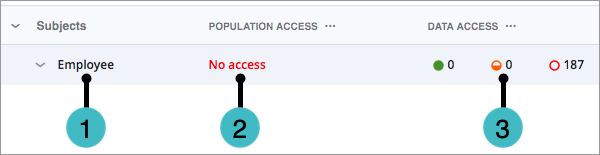
This topic describes the security items you can add to a permission.
Analytic objects
Analytic objects represent the different types of things that users can analyze in the solution. They can be a subject, like an employee, or an event, like an interview. Data for the analytic objects are stored in profile files in the form of tables. For more information about analytic objects, see Analytic Objects. The following is an example of an employee profile file, where each row represents an employee record, each column represents a property that describes the employee, and each field contains a property value.
|
Employee ID |
Name |
Birthdate |
Organization |
Location |
|---|---|---|---|---|
|
100 |
Carrie |
Jan 20, 1980 |
R&D |
New York |
|
101 |
Stewart |
Jun 16, 1967 |
Sales |
New York |
|
102 |
Laurel |
Dec 2, 1992 |
R&D |
San Francisco |
|
103 |
Doug |
Mar 11, 1987 |
Marketing |
Vancouver |
For analytic objects, data security configurations are managed through security filters and data access sets, which define the breadth and level of access for items users can analyze in the solution.
- Security filters determine the population of the analytic object that users can access.
- Data access sets determine the properties and property values that users can access for the analytic object.
By combining security filters and data access sets, you are deciding which group of records are accessible and what specific information from those records a user can see.
Example: Permission that grants users detailed access to all employees in New York.
To create this permission, you would have to define:
- A security filter for the Employee subject that restricts access to only employees in New York.
- A data access set for the Employee subject that gives users detailed access to all employee properties.
Using the previous employee profile file as an example, users with this permission would be able to access the records for Carrie and Stewart and see values for their Employee ID, First Name, Birth Date, Organization Hierarchy, and Location Hierarchy. Users will also be able to use these properties in filters and group bys to analyze the data.
Sources
Sources store data for your solution and are used to map to data load targets, such as analytic objects in Visier's data model. By configuring data security for sources, you are defining which sources a user can access in Studio to create mappings, view source settings, and view uploaded data. Source security does not allow a user to edit the source definition, such as the file regex. This can only be done by users with access to all data to prevent unauthorized users from changing how data is assigned to sources. For more information about sources, see Sources.
Note: If you have Visier People Extend, this feature is enabled by default.
Users who are granted source access through permissions can:
- Create and edit mappings.
- For lookup mappings, a permission only needs to include source access.
- For regular, auxiliary, and correction mappings, a permission must include source, data category, and target access. A user can only create or edit the mappings from the sources and targets they have access to.
- View all data associated with a source.
- View source configuration, but can't change the source configuration.
- View data files that they uploaded to Visier, even if the files aren't connected to the sources that the user has access to.
- Include or exclude uploaded files in the source. For more information, see Add or Remove Records from a Source.
Note:
- Users can see all uploaded files for a source that they have source access to, including files uploaded by other users. If a user uploads a file that connects to a source they don't have access to, the user cannot view or delete the file after uploading it. Only users with access to all data can see all uploaded files.
- Granting source access does not automatically provide access to data load targets or analytic objects within the solution.
Data categories and targets
A data category represents a dataset loaded into Visier, acting as a set of instructions to generate a data version. These instructions bring together mappings from your source data to the target objects within Visier's data model. For example, a mapping connects your organization's employee source data to Visier's Employee subject. For more information about data categories, see Data Categories.
When you provide access to a data category and specific targets, you are giving visibility into all associated data with those targets. Users who are granted data categories and targets access through permissions can:
- Create and edit regular, auxiliary, and correction mappings if the permission includes source, data category, and target access. A user can only create or edit the mappings from the sources and targets they have access to.
- Create or edit rules (business rules, system rules, and multi-subject rules).
- View debugging information from all sources for the specified targets in the Debug Inspector. Granting access to individual subjects will also provide visibility to the debug information of all their child events.
Note:
- Granting data category and target access does not automatically provide access to sources or analytic objects within the solution.
- A user with access to all data, such as the Super Admin permission, has access to all sources, data categories and targets by default.
- Once target security is enabled, you must migrate existing permissions to secure mappings through target access. For more information, see Migration workflow for mappings.
Managed plans
You might configure data security to give access to managed plans. Managed plans are plans created in Studio that allow you to configure security to limit plan visibility. When you provide access to a managed plan, you're granting access to plan items and segmentation within the plan.
Plan item security determines which plan items are visible to the user, such as Base Pay. Segmentation security determines which rows of the plan are visible based on access to the plan’s hierarchy members, such as Location. You must configure data security in order for users to view the plan. When you share a plan with users, they will only see the plan data that you have granted them access to through their permission. Plan values they do not have access to will be blank.